
If you’ve ever tried to remove default apps like Xbox, Weather, Maps, Feedback Hub, or even Cortana, you probably noticed there’s no uninstall button. These are pre-installed apps that Windows locks by default.
But here’s the secret: you can uninstall built-in apps using PowerShell — and in this blog, I’ll show you how to do it step-by-step with real working commands.
Whether you’re cleaning up bloatware, saving space, or customizing your setup — these PowerShell commands will help you take control of your system.
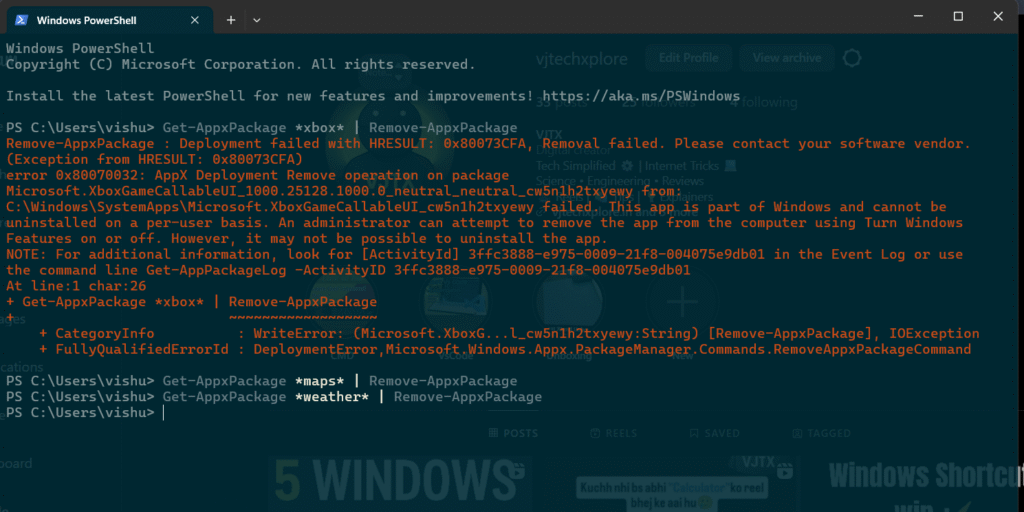
Why Use PowerShell to Uninstall Preinstalled Apps?
Windows 10 and 11 come with many default apps that can’t be removed normally. These include:
Xbox
Weather
Maps
Cortana
Feedback Hub
Tips
Alarms & Clock
With PowerShell, you can force uninstall these apps quickly — even if the uninstall option is missing in Settings.
🚀 How to Open PowerShell (Admin Mode)
To use the uninstall commands:
Press
Win + Xor right-click on the Start menuClick Windows Terminal (Admin) or PowerShell (Admin)
Click “Yes” on the UAC prompt
Now you’re ready!
PowerShell Commands to Uninstall Common Built-in Apps
🎮 Uninstall Xbox
Get-AppxPackage *xbox* | Remove-AppxPackage
☁️ Uninstall Weather
Get-AppxPackage *bingweather* | Remove-AppxPackage
🗺️ Uninstall Maps
Get-AppxPackage *windowsmaps* | Remove-AppxPackage
📢 Uninstall Feedback Hub
Get-AppxPackage *feedback* | Remove-AppxPackage
💡 Uninstall Tips App
Get-AppxPackage *getstarted* | Remove-AppxPackage
⏰ Uninstall Alarms & Clock
Get-AppxPackage *alarms* | Remove-AppxPackage
👤 Uninstall Cortana (Windows 10/11)
Get-AppxPackage *cortana* | Remove-AppxPackage
👥 Remove Apps for All Users (Optional)
Get-AppxPackage -AllUsers *AppName* | Remove-AppxPackage